Upload and Manage Automation Feeds
Prepare CSV schemas and sample rows for feed-driven campaign draft previews.
Upload and Manage Automation Feeds is part of the authenticated Revenue Proven workspace. This guide covers Upload and Manage Automation Feeds on /dashboard/automated-campaigns/feeds. The page is documented against the current production interface rather than a mockup or an obsolete navigation path.
What this guide covers
The feeds route is a compatibility entry point for the Automations page, where the Feeds tab stores CSV schema, sample rows, counts and refresh status. The controls and values shown depend on the signed-in workspace, its connected providers, plan entitlements, member role, and any data already synchronized or seeded for demonstration.
Use this article to understand the page’s purpose, where its data comes from, and the safest next action. Revenue Proven separates read-only analysis from explicit mutations so that opening a page never implies that an external write has occurred.
Data, access, and permissions
The URL currently redirects to the consolidated Automations route. Shawn’s three feeds contain synthetic sample rows and no object-storage key. Real synchronized values can change after a scheduled sync, while seeded demo rows are deterministic examples and must not be presented as customer benchmarks.
Feature availability is enforced on the server. A button may be hidden or disabled when the workspace lacks the required plan, add-on, OAuth scope, account role, owner permission, or rollout flag. Team membership never bypasses owner-only write guards.
Operational guidance
Before changing anything, verify the active workspace, selected account, date range, provider filters, and saved configuration. If a screen looks incomplete, allow asynchronous charts and grids to finish loading and check Workspace > Connections for sync health.
Use read-only preview, filter, export, and drill-down controls freely. Treat controls labelled Save, Submit, Apply, Resume, Sync, Send, Publish, Delete, Reconnect, or Regenerate as state-changing actions and confirm their effect before continuing.
Current product workflow
The feeds route is a compatibility entry point for the Automations page, where the Feeds tab stores CSV schema, sample rows, counts and refresh status. This screenshot was captured from the current production route while signed in to the populated Shawn Brown demo workspace.
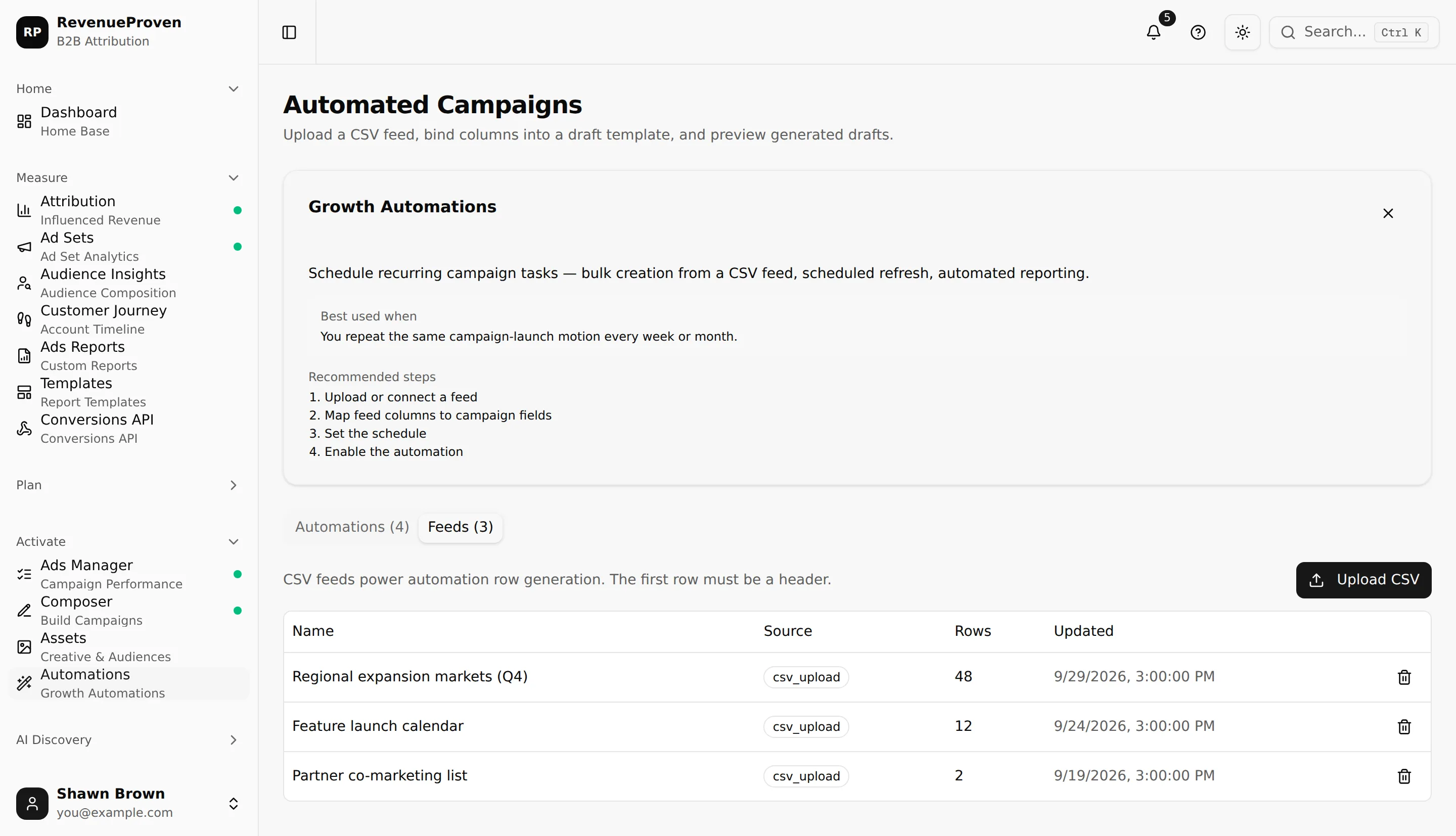
Use the Feeds tab to upload and inspect source data before referencing it from an automation. A feed cannot be deleted while an automation still uses it. Interface labels and availability follow the current plan, role, connection, and workspace context.
The URL currently redirects to the consolidated Automations route. Shawn’s three feeds contain synthetic sample rows and no object-storage key. Confirm the active workspace and understand whether a control reads data, changes local configuration, or calls an external system before using it.